

Available options
The contextual menu includes several options you can use: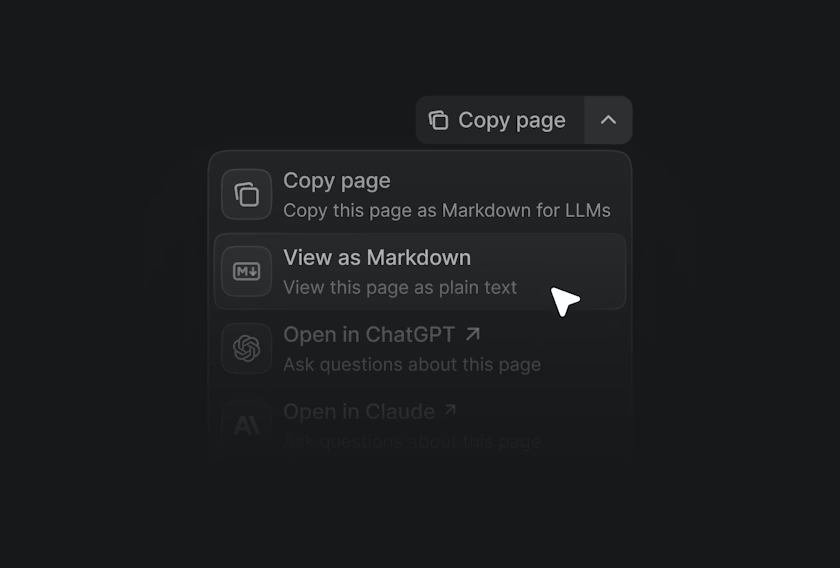
| Option | Description |
|---|---|
| Copy page | Copies the current page as Markdown for pasting into AI tools |
| View as Markdown | Opens the current page as Markdown |
| Open in ChatGPT | Creates a ChatGPT conversation with the current page as context |
| Open in Claude | Creates a Claude conversation with the current page as context |
| Open in Perplexity | Creates a Perplexity conversation with the current page as context |
| Copy MCP server URL | Copies the MCP server URL to the clipboard |
| Connect to Cursor | Installs the hosted MCP server in Cursor |
| Connect to VS Code | Installs the hosted MCP server in VS Code |
How to use
Use cases
Ask questions about the API
Ask questions about the API
- Access the endpoint page you want to understand
- Click Open in Claude or Open in ChatGPT
- Ask: “How do I use this endpoint for [your use case]?”
Generate code examples
Generate code examples
- Access the endpoint page (e.g., Generate QR Code)
- Click Open in ChatGPT
- Ask: “Generate an example in Python/Node.js/PHP”
Use in Cursor/VS Code
Use in Cursor/VS Code
- Click Connect to Cursor or Connect to VS Code
- The MCP server will be installed automatically
- In the IDE chat, ask about the Owem API
Copy to other tools
Copy to other tools
- Click Copy page
- Paste the Markdown into any AI tool
- Add your question